Definition
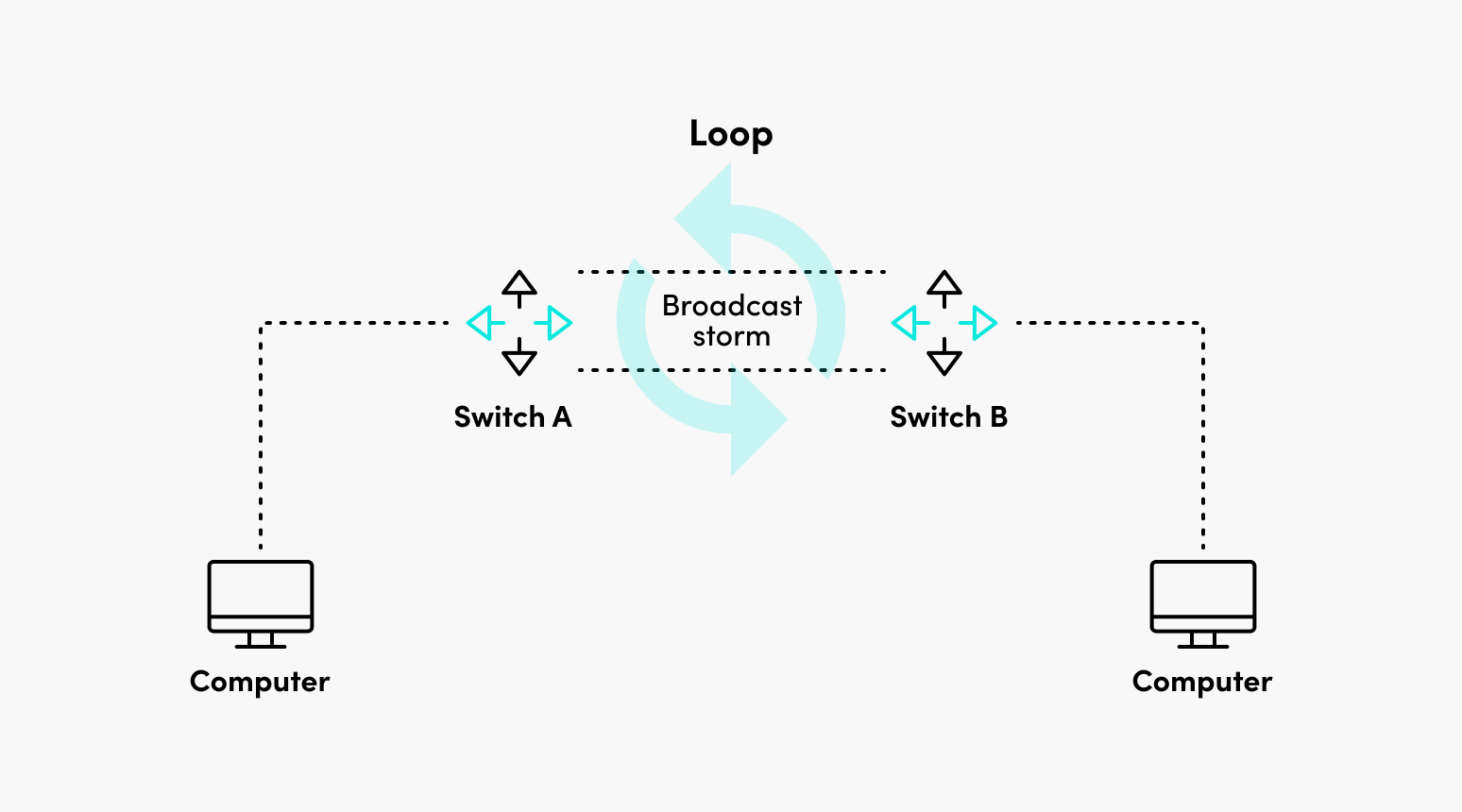
Switching loops occur when network switches are connected together in such a way that network traffic loops around infinitely instead of traversing the hops needed to travel from source to destination.1
Cause
It can happen when:
- Physical cable connected to 2 ports of the same device
- Two switches circularly forwarding packet to each other on 2 (or more) ports. This one is harder to troubleshoot
Example
Imagine two switches, Switch A and Switch B, connected by two separate Ethernet cables.
- A user (PC1) on Switch A sends a broadcast (e.g., “Who has IP 10.0.0.1?”).
- Switch A sends the broadcast to Switch B over both cables.
- Switch B receives two copies. It forwards one copy to its local devices and forwards both copies back to Switch A.
- Switch A receives four copies. It forwards them to its local devices and sends them back to Switch B.
- The number of frames doubles exponentially, creating a storm that renders the network unusable.
Preventing
- Configure correctly…
- Set a Spanning Tree Protocol (STP) to detect loops
Troubleshooting
From 1:
If you suspect a switching loop and part or all of the network is down, you should take the following steps to troubleshoot and trace the source:
-
Rule out other potential sources of an outage, like DNS issues, hardware failure, etc.
-
Note the network topology: single L2 switch, multiple L2 switches connected to a core switch, etc.
-
Start at the top of the network switching hierarchy where the loop is affecting network connectivity, for example, at the core switch in the diagram above. Then connect a laptop to the switch you determined to be the top of the hierarchy affected by the loop.
-
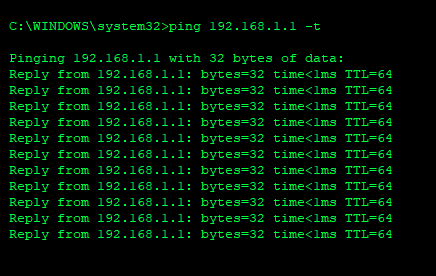
Start a continuous ping session to a device on your network with the command ping (IP Address) -t
-
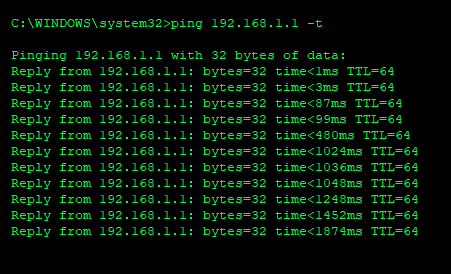
Pay attention to the ping session time: If a loop has happened, the ping time should increase dramatically as the broadcast storm overwhelms the network.
-
While continuing the ping session, unplug each uplinked switch from the core, or each device from an access layer switch, if starting there.
-
Monitor the ping session after each uplink is disconnected for 30 seconds to see if the time decreases and normal network connectivity returns.
-
Once you see normal network connectivity return, you have narrowed down the source of the loop. In the case of Figure 2, after disconnecting the uplink to Switch C, the loop would go away and normal network connectivity would be restored.
-
Once you have found the source of the loop, disconnect it to remove the loop.
Tldr
- Rule out common causes
- Monitor a device
- Start unplugging switches
- Continue until connectivity is restored